
Add a transaction
Add an expense or income
Section titled “Add an expense or income”- Open the Transactions tab and tap New in the bottom-right corner.
- Choose Expense or Income at the top.
- Enter the amount, for example
12.50. - Fill in Merchant: who you paid, or who paid you (for example “Landlord” or “Salary”).
- Check the Date. It starts as today.
- Optionally pick an Account, a Category and a Label.
- Tap Save transaction.
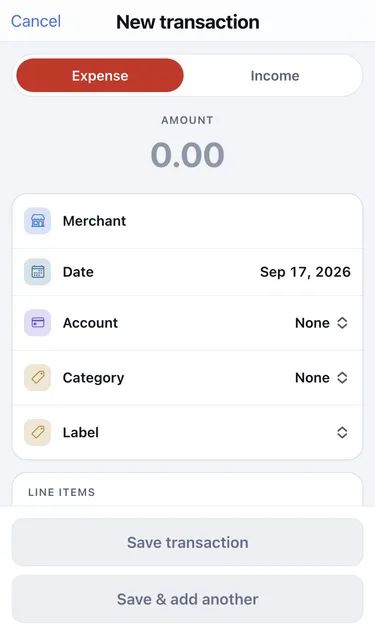
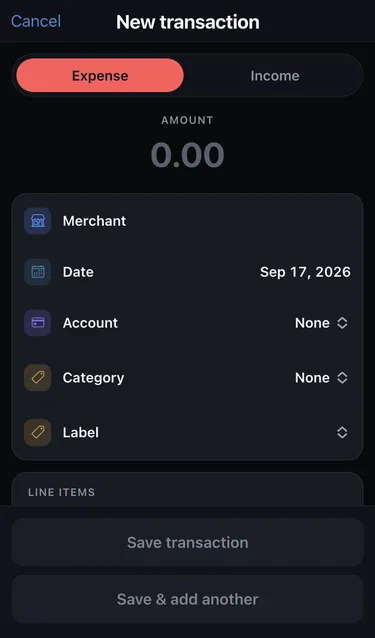
The transaction appears in the list under its date. To enter several in a row, tap Save & add another instead: the form clears and stays open.
Add line items
Section titled “Add line items”Line items let you split one payment into parts, for example a market trip with vegetables and bread.
- In the Line items section, tap Add line item.
- Enter the Item name, the Quantity and the Unit price.
- Repeat for each item. Tap Remove to delete one.
With line items, the transaction’s amount is the sum of the items. You don’t enter it separately.
Required fields
Section titled “Required fields”You need a Merchant, and either an amount or at least one line item with a name and unit price. Cashfinity highlights anything that is missing when you tap Save transaction.
Account, Category and Label are optional. Uncategorized transactions still count in your totals. Uncategorized line items also show up in the Review queue under Settings, so you can sort them later.