
View, edit or delete a transaction
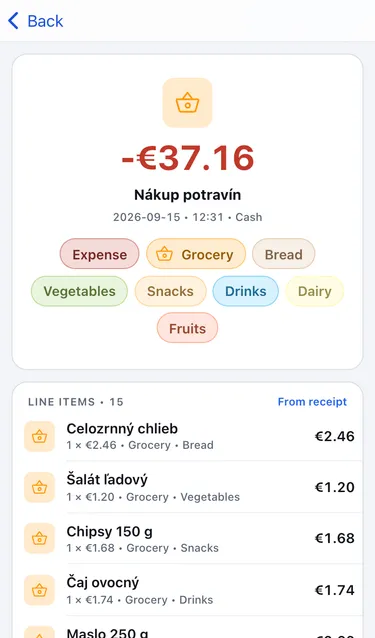
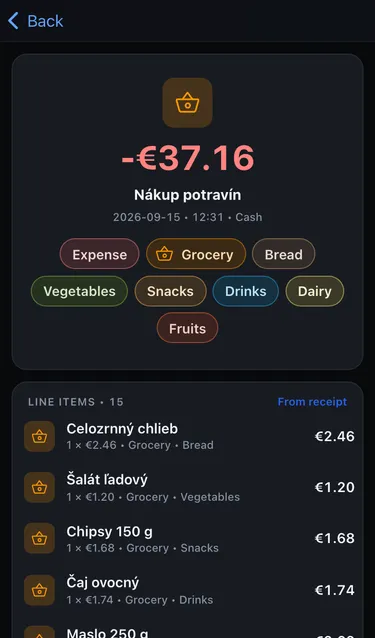
Tap any transaction in the Transactions list to open it. The detail shows the amount, merchant, date and time, account, and the categories and labels used. Below that is every line item.
Change an item’s category
Section titled “Change an item’s category”- Tap a line item.
- Pick a different category and labels.
- Cashfinity asks whether to apply the change to future items with the same name:
- Always creates a categorization rule, so the next receipt with this item is sorted the same way.
- Just once changes only this item.
This works for scanned receipts and for transactions you entered yourself.
Edit a transaction
Section titled “Edit a transaction”You can edit transactions you entered by hand. Tap the edit button in the top-right corner, change what you need, and save.
Transactions from scanned receipts can’t be edited, because their amount and items come from the official eKasa receipt. You can still change the category of each item.
Duplicate a transaction
Section titled “Duplicate a transaction”For payments that repeat, like rent or a phone bill, tap Duplicate at the bottom of a transaction you entered by hand. Cashfinity opens a new transaction with the same details, ready for you to adjust the date and save.
Delete a transaction
Section titled “Delete a transaction”- Open the transaction and tap Delete at the bottom.
- Confirm with Delete.